
Add Two-Factor Authentication To Your Account
A stolen password shouldn't mean stolen data. Add a second step to sign-in and keep your maps protected, setup takes about two minutes.
Get Started With 2FA
What Is Multi-Factor Authentication (MFA)?
Multi-factor authentication, often called two-factor authentication or 2FA, asks for a second proof of identity when you sign in. Even if someone learns your password, they still cannot reach your account without the code from your phone.
BatchGeo supports a time-based code from any authenticator app such as Google Authenticator, Authy, or 1Password, one-time codes sent to your email, and single-use backup codes. You manage all of it from the Security page in your account admin.
Setting Up Two-Factor Authentication (2FA)
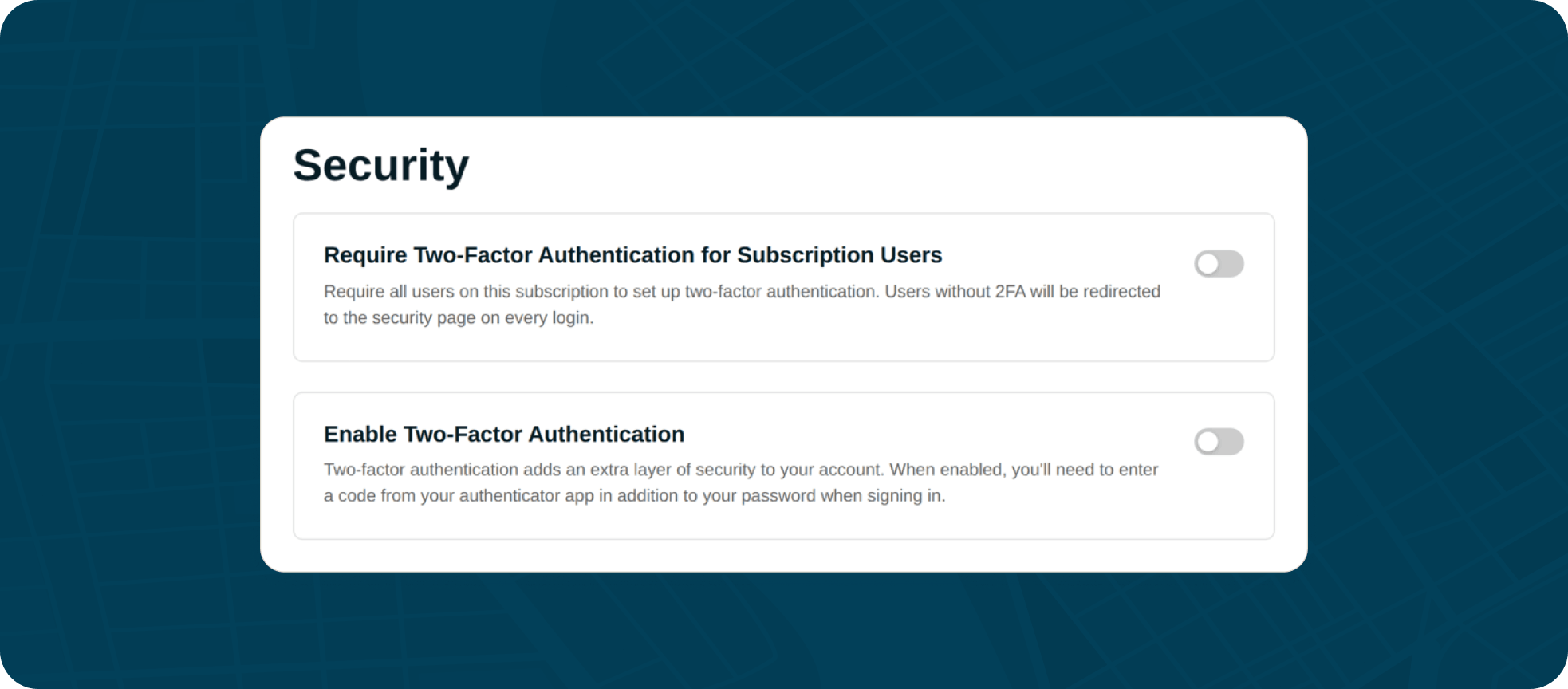
Open Account Admin and then Security, and switch on Enable Two-Factor Authentication. To finish setup:
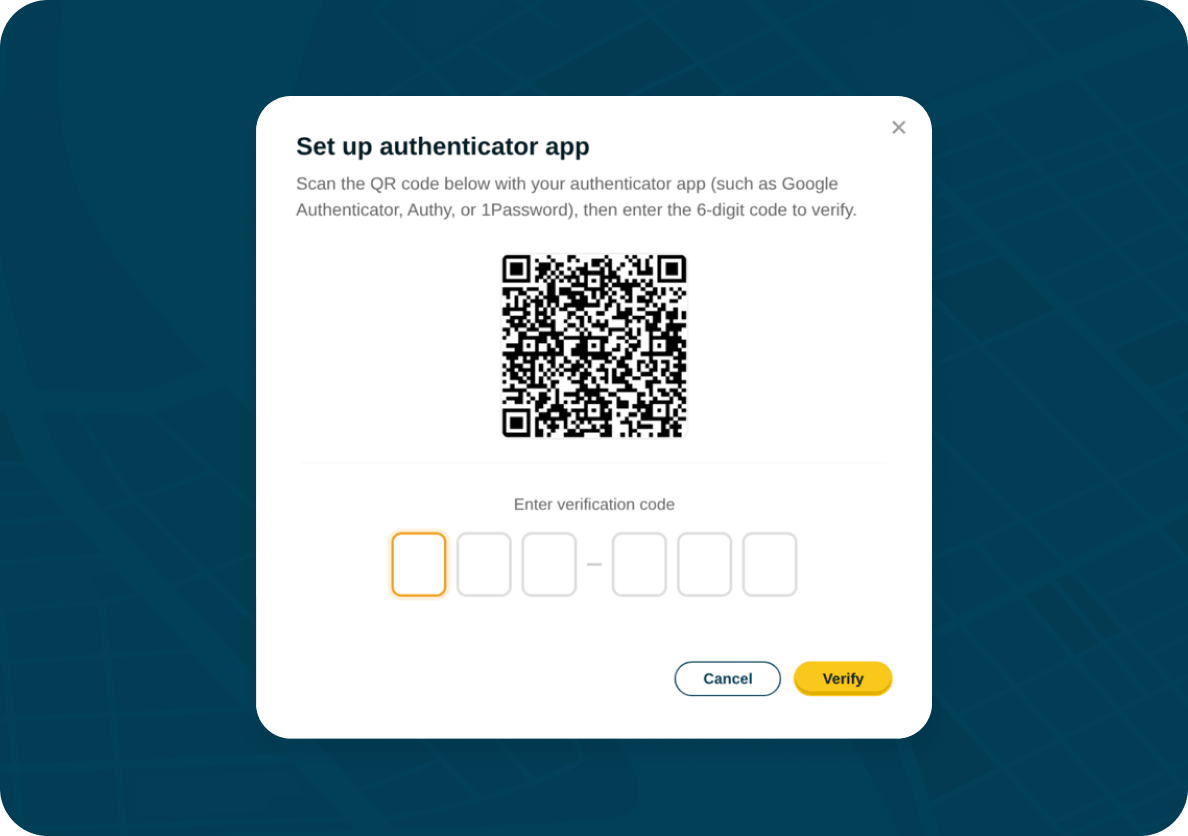
- Scan the QR code with your authenticator app, or type the key in by hand.
- Enter the 6-digit code your app generates to confirm it is working.
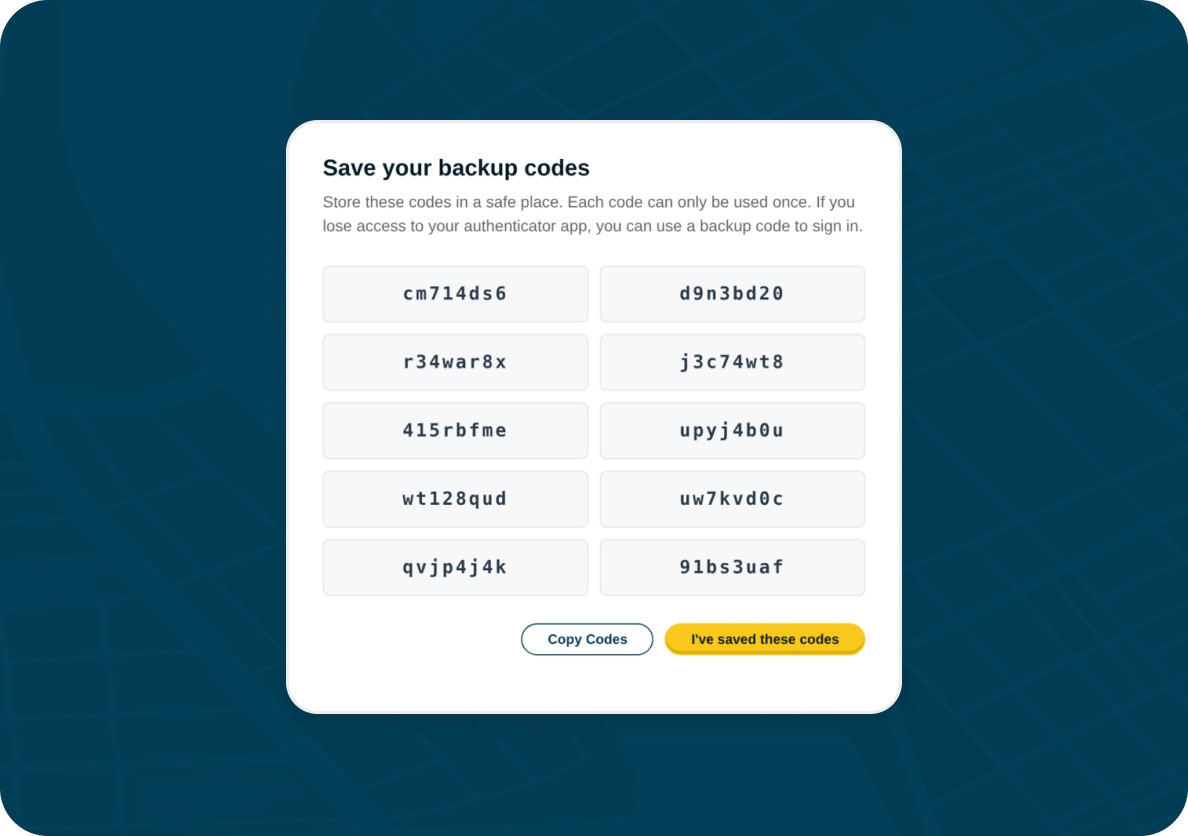
- Save the backup codes shown next, in case you ever lose your phone.
Save Your Backup Codes
Backup codes are your safety net. Each code works once, so keep them somewhere safe. You can reveal new codes or regenerate the whole set at any time from the Security page.
Go To Security PageSigning In With Two-Factor Authentication
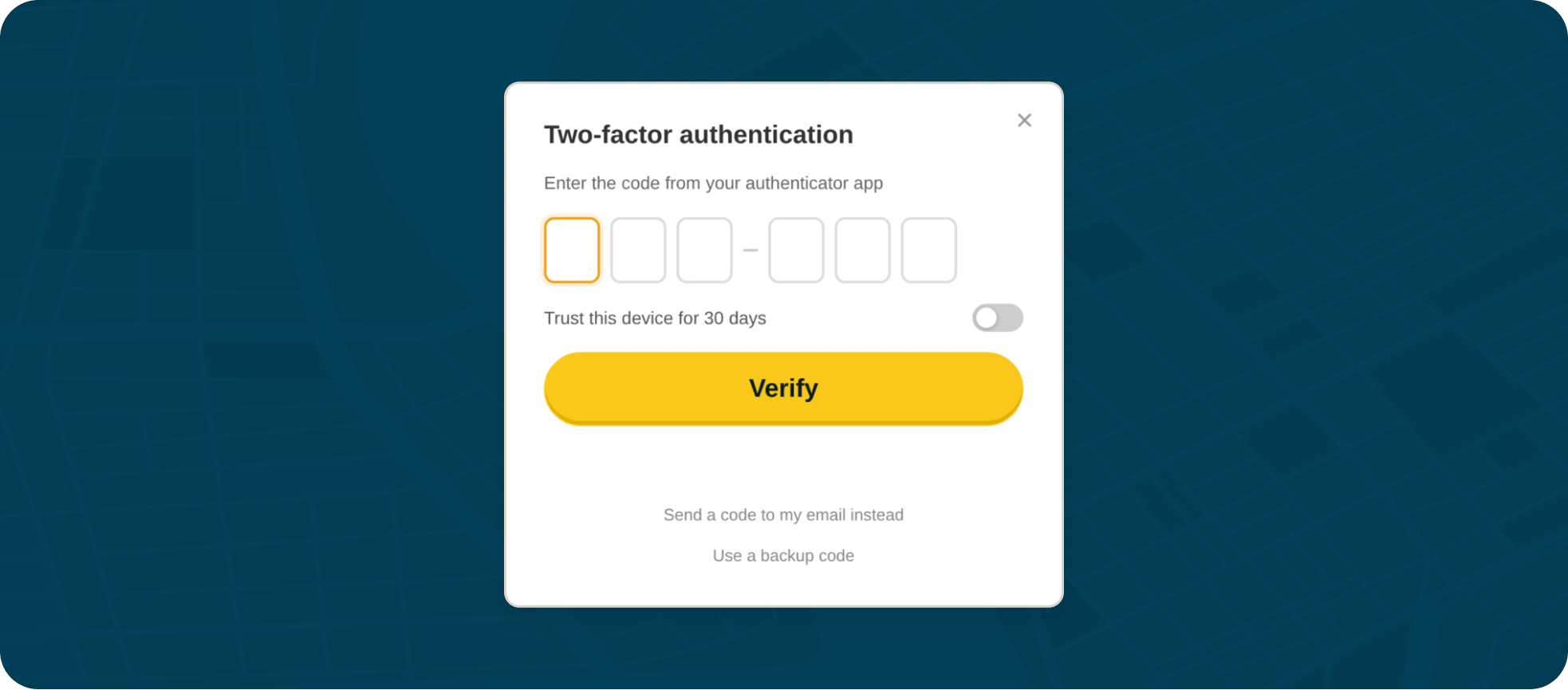
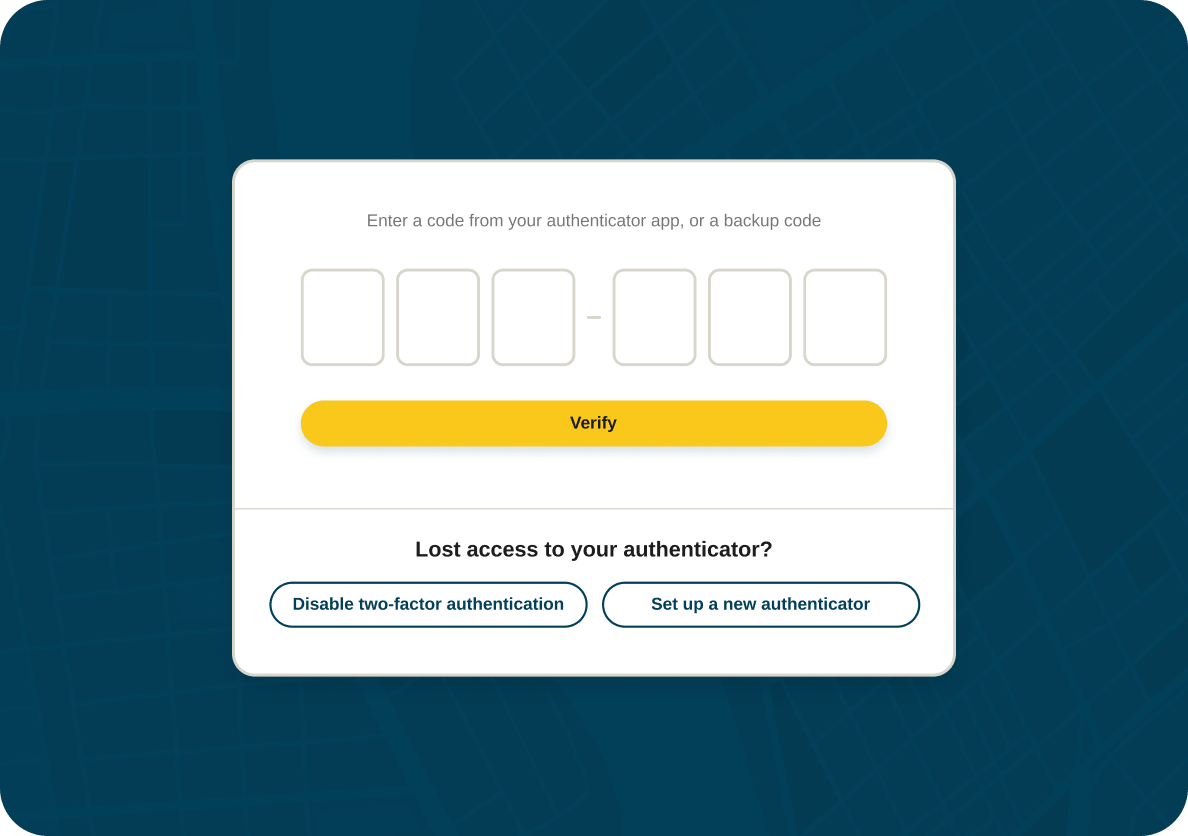
After you enter your password, BatchGeo asks for the current code from your authenticator app. Enter it to finish signing in. If you cannot reach your app, request a code by email or use one of your backup codes instead.
Turn on Trust this device for 30 days on a computer you use regularly, and BatchGeo will not ask for a code again on that device until the 30 days are up.
Require Two-Factor Authentication For Your Team
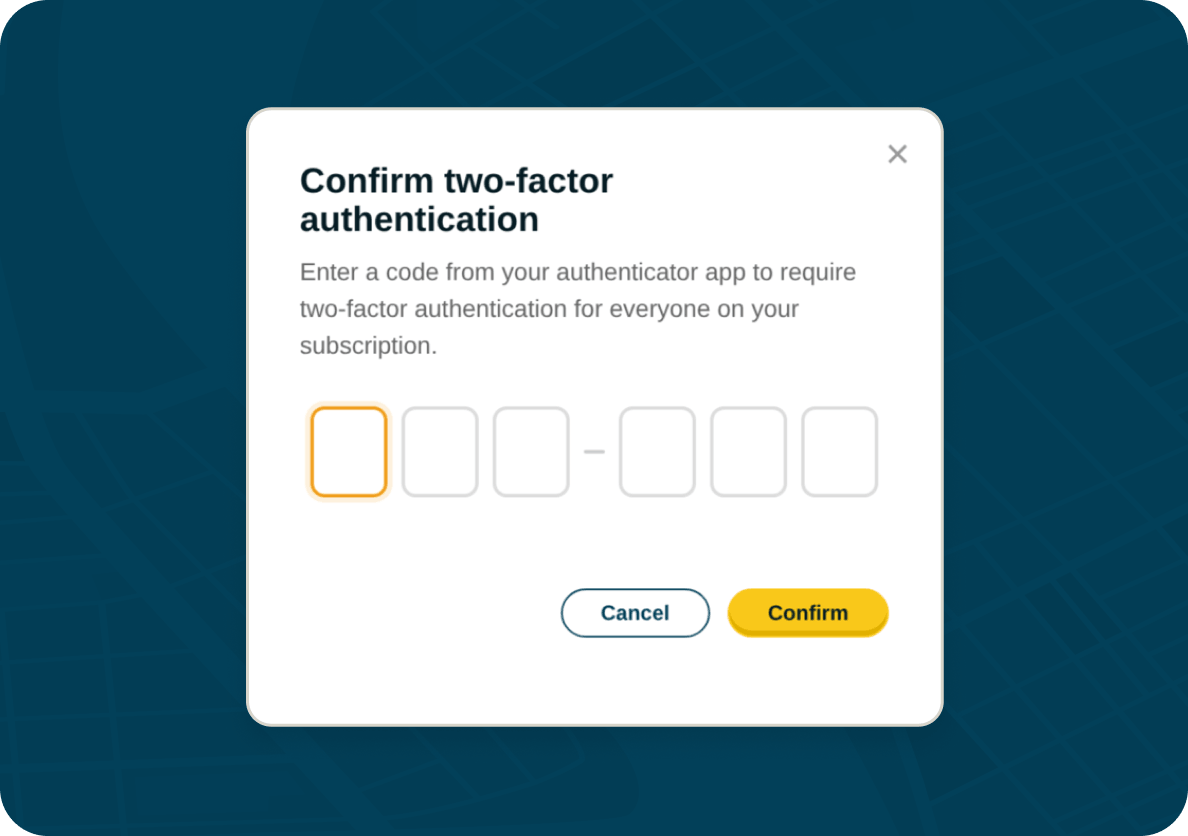
On a Pro or Prepaid plan, the subscription admin can require two-factor authentication for everyone on the account. Switch on Require Two-Factor Authentication for Subscription Users and confirm with your own code.
Get Started With 2FA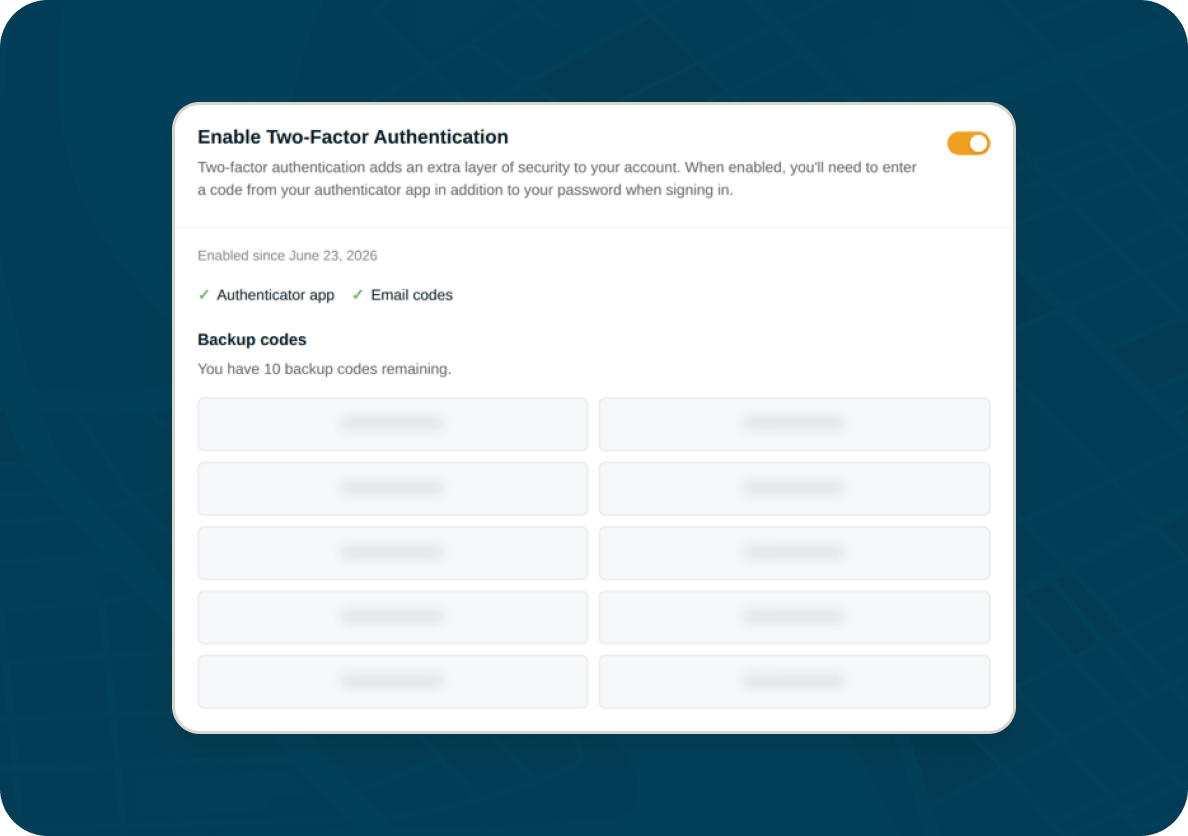
Automated Team Enrollment
Once it is required, any team member who has not set up 2FA is sent to the Security page to enroll the next time they sign in. Members cannot switch their own 2FA off while the requirement is active.
Get Started With 2FAIf You Lose Access To Your Account
Locked out? Reset your password as usual. Because your account uses 2FA, the next screen lets you verify a current code, use a backup code, or, when your subscription does not require 2FA, turn it off and start again with a new authenticator.
If A Team Member Loses Access
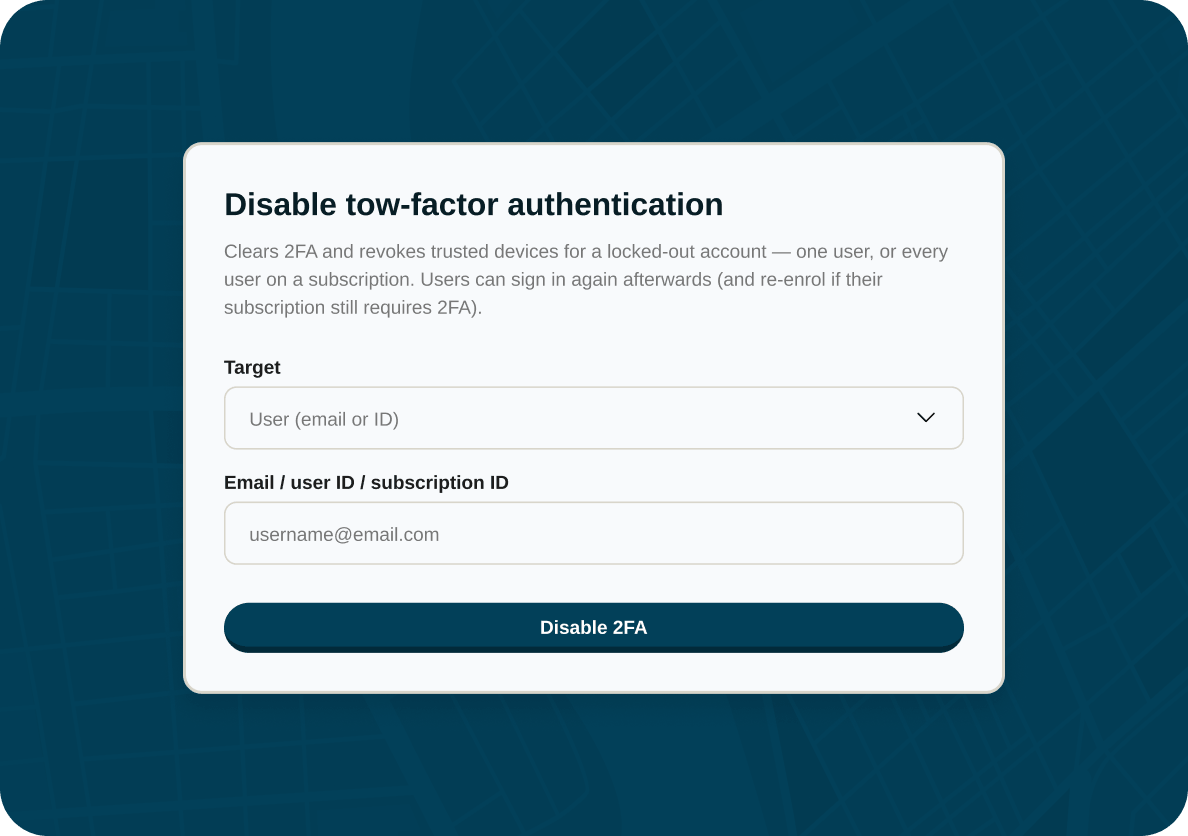
If a team member loses both their authenticator and their backup codes, BatchGeo support can clear two-factor authentication for that account so they can sign in again and re-enroll. Subscription admins can also lift the requirement from the Security page.
Secure Your Maps Today
Two-factor authentication is available on every BatchGeo account at no extra cost. Turn it on in a couple of minutes and keep your data protected.
Get Started With 2FAFrequently Asked Questions
How do I set up two-factor authentication?
Open Account Admin, go to Security, and switch on Enable Two-Factor Authentication. Scan the QR code with an authenticator app, enter the 6-digit code to verify, then save your backup codes.
What happens if I lose my phone or authenticator app?
Use one of the single-use backup codes you saved during setup, or have a one-time code sent to your email. If you have lost both, reset your password and recover access from the next screen, or ask BatchGeo support to clear 2FA for your account.
Which authenticator apps does BatchGeo support?
Any time-based (TOTP) authenticator app works, including Google Authenticator, Authy, and 1Password.
Can I require 2FA for my whole team?
Yes. On a Pro or Prepaid plan, the subscription admin can switch on Require Two-Factor Authentication for Subscription Users. Team members without 2FA are prompted to enroll the next time they sign in.
How do I recover access for a team member?
A subscription admin can lift the requirement from the Security page, or BatchGeo support can clear two-factor authentication for that account so the team member can sign in again and re-enroll.
Does two-factor authentication cost extra?
No. Two-factor authentication is included on every BatchGeo account at no extra cost.